Connect Agent Tools
WorkBuddy
WorkBuddy is a full-scene desktop AI agent from Tencent. It integrates with QQ / WeCom ecosystems, supports local computer control and multi-model switching, and offers commercial service via Token quota plans for both individuals and teams. Through custom models (OpenAI-compatible protocol), you can seamlessly connect models served by AutoRouter. This guide uses gpt-5-nano as an example.
- Website: https://www.workbuddy.cn
- Tencent Cloud product page: https://cloud.tencent.com/product/workbuddy
📦 Prerequisites
What you'll need
- WorkBuddy installed (macOS / Windows)
- An AutoRouter API key (generated in the console)
- A model ID exactly matching one exposed by your AutoRouter console (e.g.
gpt-5-nano,claude-sonnet-4-6)
🚀 Step 1: Download and install WorkBuddy
- Visit the WorkBuddy website: https://www.workbuddy.cn
- Download the installer for your platform
- On Mac, download the macOS build
- On Windows, download the Windows build
- Complete the installation and launch WorkBuddy
🔑 Step 2: Get an API Key
- Open the AutoRouter API Keys page and click Create API Key. See Quick Start for details.
- After creation, copy and store the API Key securely — you will need it in the next steps.
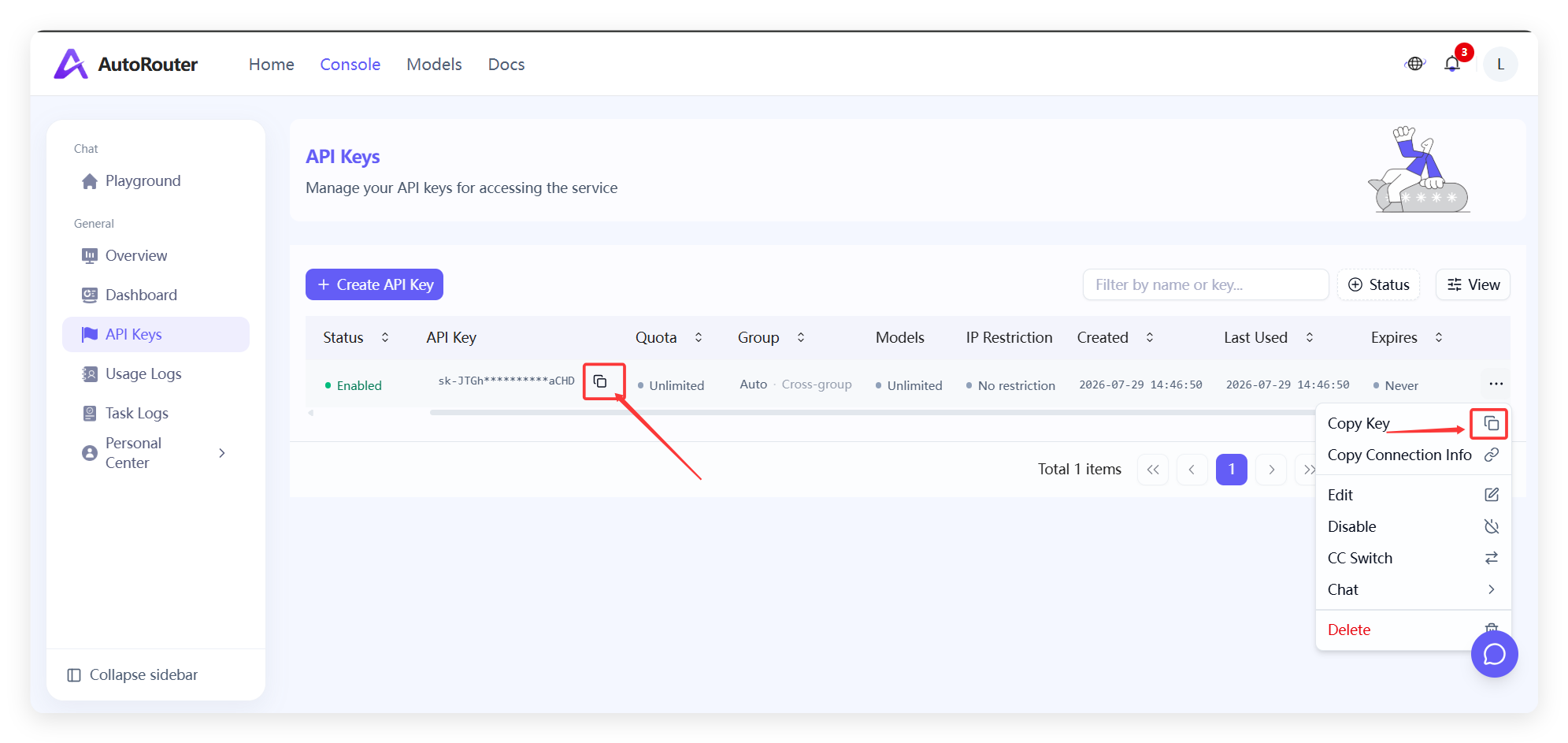
⚙️ Step 3: Configure a custom model in WorkBuddy
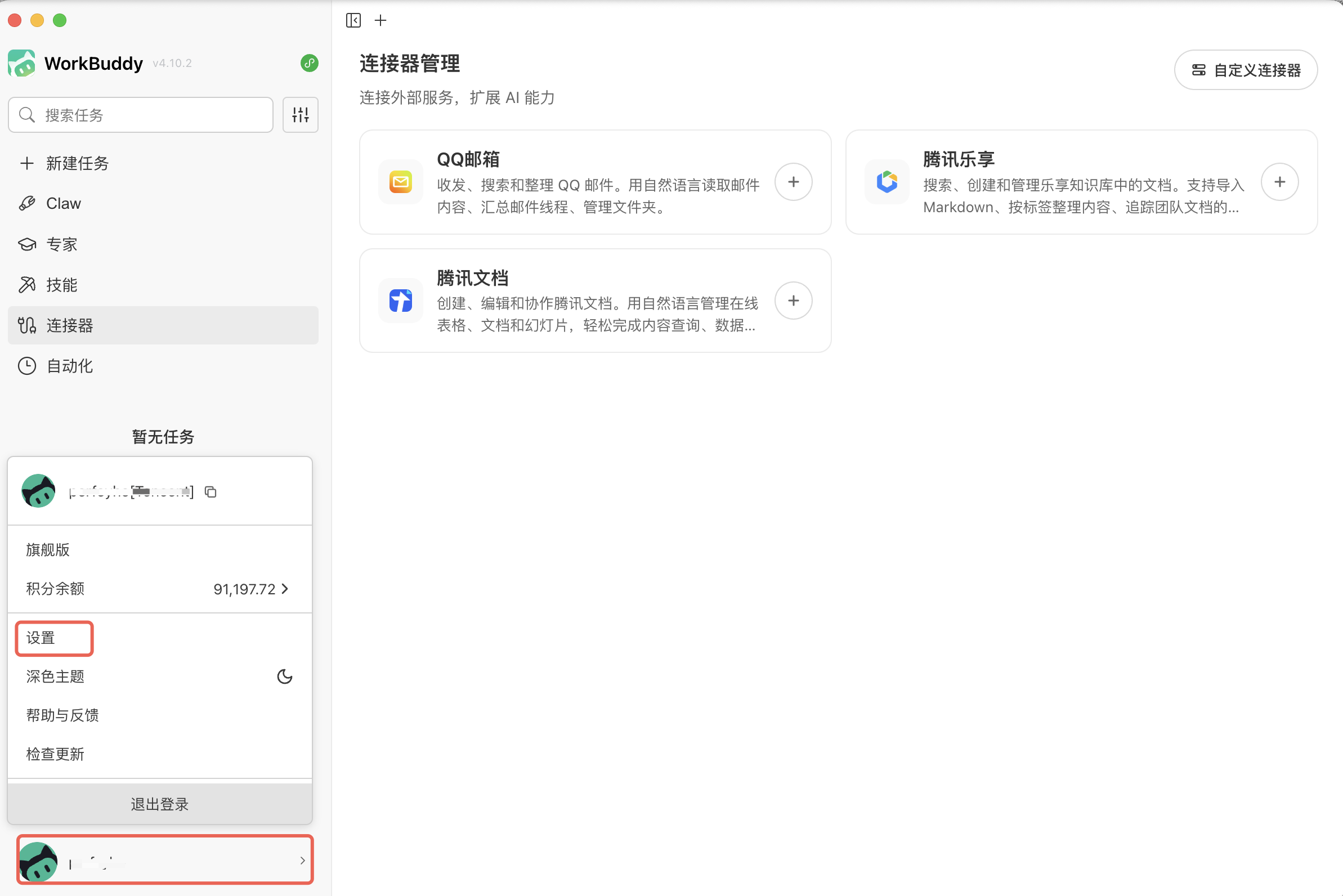
- Launch WorkBuddy, click your account in the bottom-left corner, then choose Settings.
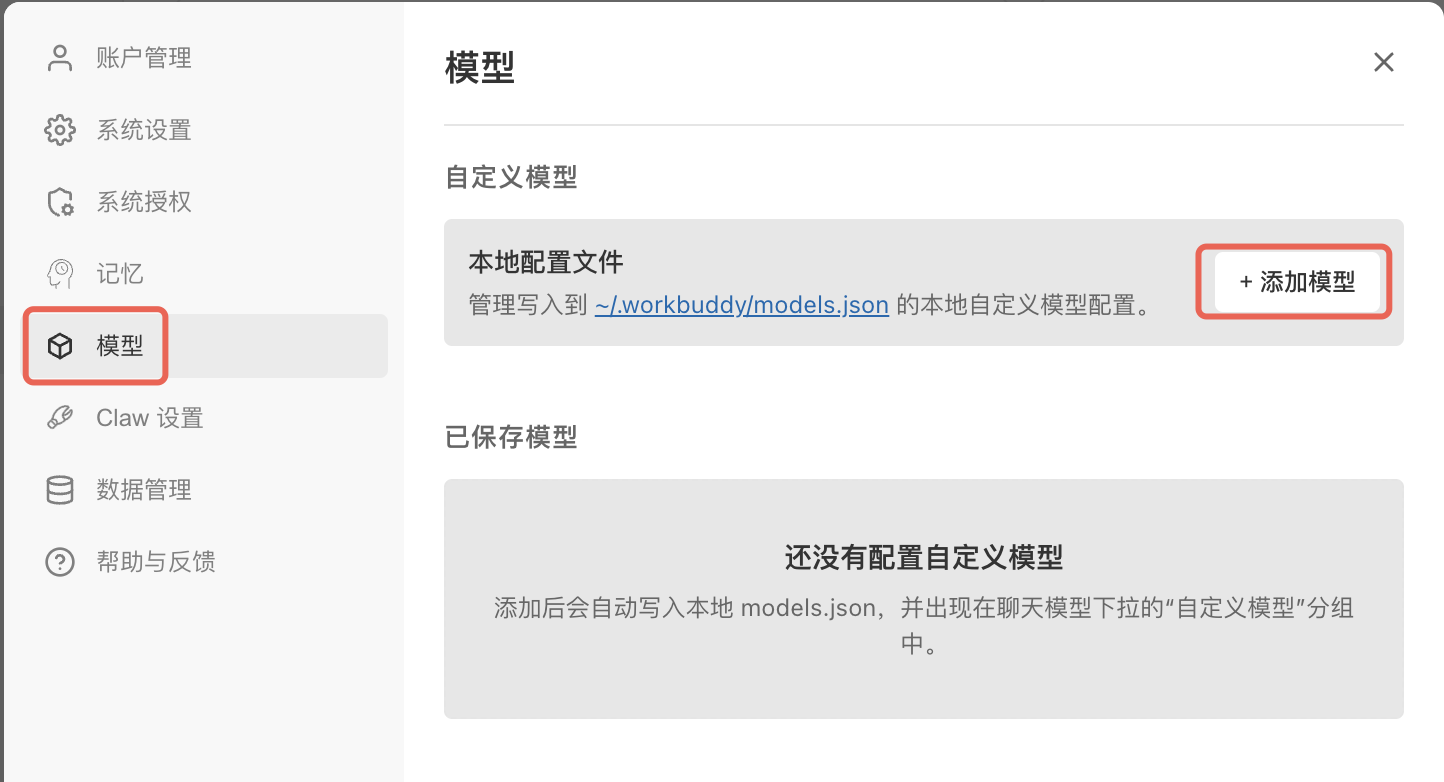
- In the left navigation, select Model. Under Custom Models, click Add Model.
-
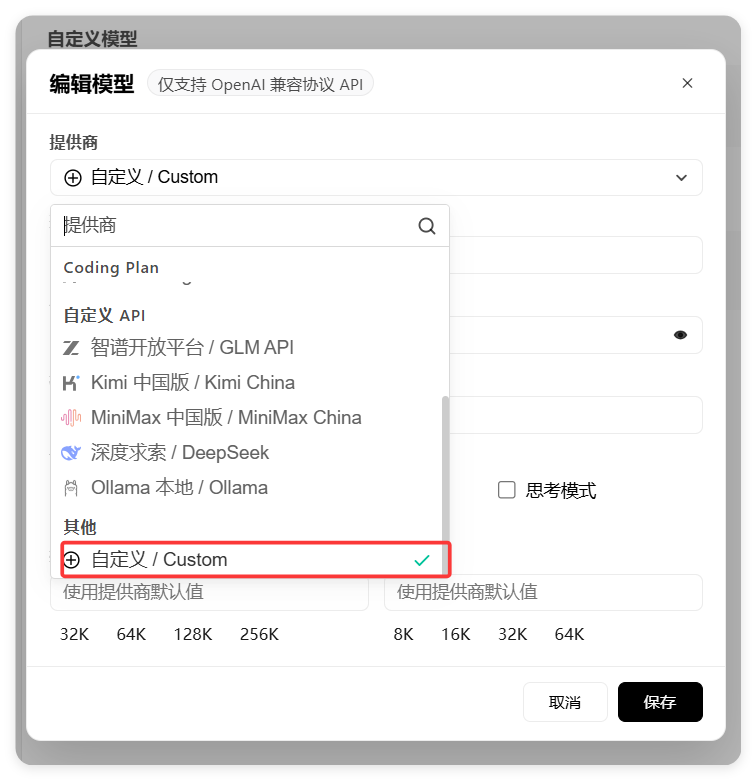
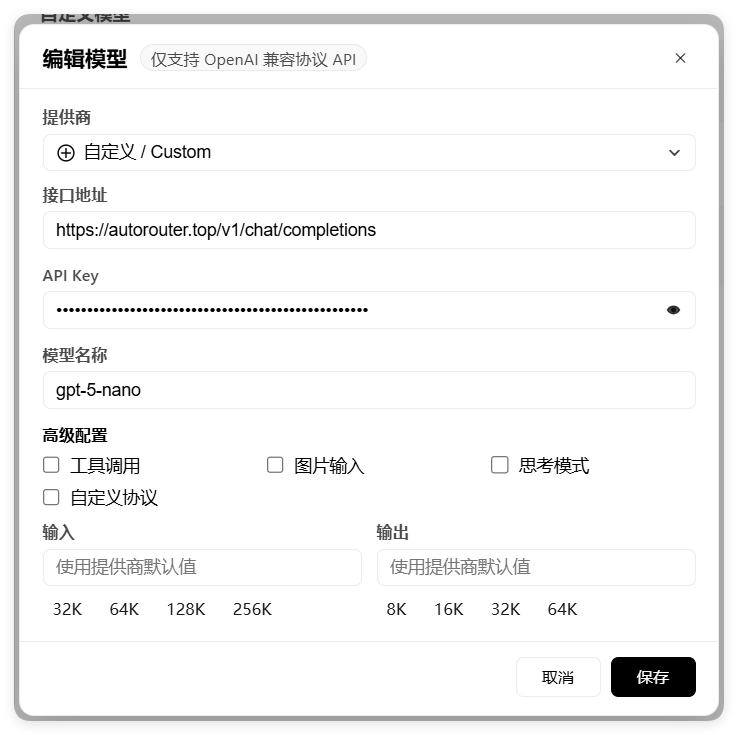
Fill in the following and click Save:
- For Provider, choose Custom:
-
Fill in these fields:
- Endpoint URL:
https://api.autorouter.top/v1/chat/completions - API Key: your AutoRouter API key
- Model name:
gpt-5-nano(or any model ID available in your AutoRouter console) - Advanced settings (optional): recommended — enable Tool calling, Image input, and Thinking mode
- Endpoint URL:
✅ Step 4: Verify
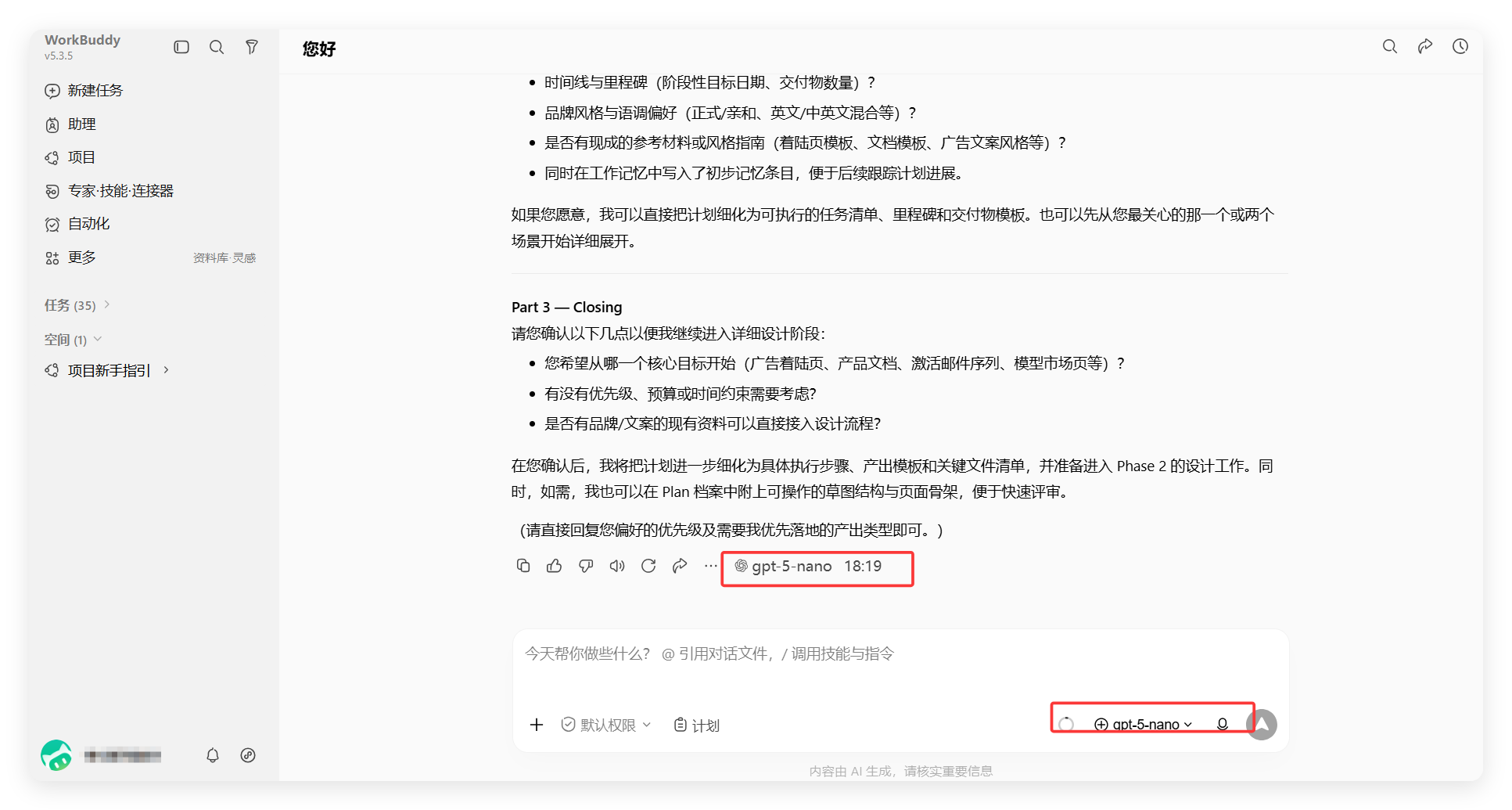
After saving, pick the newly added gpt-5-nano model in WorkBuddy’s model selector and send a test message. A normal response means the setup succeeded.
❓ Troubleshooting
| Issue | Fix |
|---|---|
| Connection failed / invalid API key | Confirm the endpoint is https://api. and the API key is correct |
| Model not found | Confirm the model name matches your AutoRouter console exactly |
| New model missing from the selector | Confirm the config was saved, then switch to it in the chat model dropdown |
| Wrong endpoint URL | Use the full Chat Completions URL (including /v1/chat/completions), not just /v1 |
| Tool calling / image input unavailable | Enable the matching options under Advanced settings, and confirm the model supports those capabilities |