DeepSeek Harness
DeepSeek Harness (dsh) is DeepSeek's open-source Agent runtime for building AI Agents with tool calling, multi-turn conversations, and plugins. The official dsh-llm-autorouter plugin routes Harness model calls through AutoRouter for intelligent routing, channel failover, billing, and observability. This guide explains how to connect DeepSeek Harness to AutoRouter.
- DeepSeek Harness: https://github.com/deepseek-ai/deepseek-harness
- Integration plugin: https://github.com/autorouter0-ai/dsh-llm-autorouter
📦 Prerequisites
What you'll need
- A working DeepSeek Harness installation (the Web profile is recommended; verified with
0.1.0-rc.5, while Harness remains in Developer Preview) - A valid AutoRouter API Key (generated in the console)
- The model ID you want to use (such as
deepseek-v4-flashorgpt-5-nano), exactly matching the model ID in the AutoRouter console
How it works
- DeepSeek Harness runs the Agent; AutoRouter selects the model and channel.
- The plugin registers the
autorouterprovider in Harness. Models available in chat come from the allowlist created by fetching and importing selected models; the gateway is not discovered automatically.
🔑 Step 1: Get an API Key
- Open the AutoRouter API keys page and click Create API Key. See Quick Start for details.
- After creating it, copy and securely store the API Key. You will configure it later on the DeepSeek Harness Plugins page.
🔌 Step 2: Install the AutoRouter integration plugin
In an environment where dsh / @deepseek-ai/dsh is installed, add the plugin to the Web profile (recommended):
npx @deepseek-ai/dsh plugin --profile web add dsh-llm-autorouterYou can also install it from git:
npx @deepseek-ai/dsh plugin --profile web add github:autorouter0-ai/dsh-llm-autorouterThe git installation downloads the source and runs the build. If it fails on the first attempt, follow the allowBuilds instructions shown in the command output.
⚙️ Step 3: Configure AutoRouter in Plugins
-
Start DeepSeek Harness Web, open the Plugins page, and expand the AutoRouter card.
-
Enter the connection details and click Save:
| Field | What to enter |
|---|---|
| Endpoint | The gateway origin, with no trailing slash or /v1. Public cloud default: https://api.autorouter.top |
| API Key | The AutoRouter API Key created in the previous step. It is stored by the credentials service and is not written to settings.yaml |
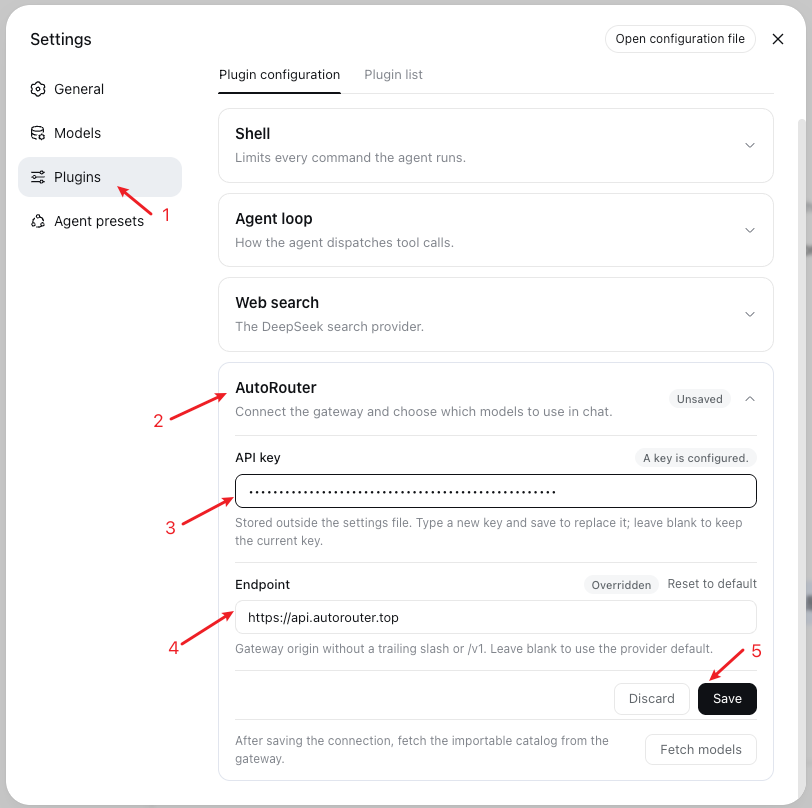
- After saving successfully, click Fetch models to retrieve the importable catalog from the gateway, grouped by capability such as chat or image generation.
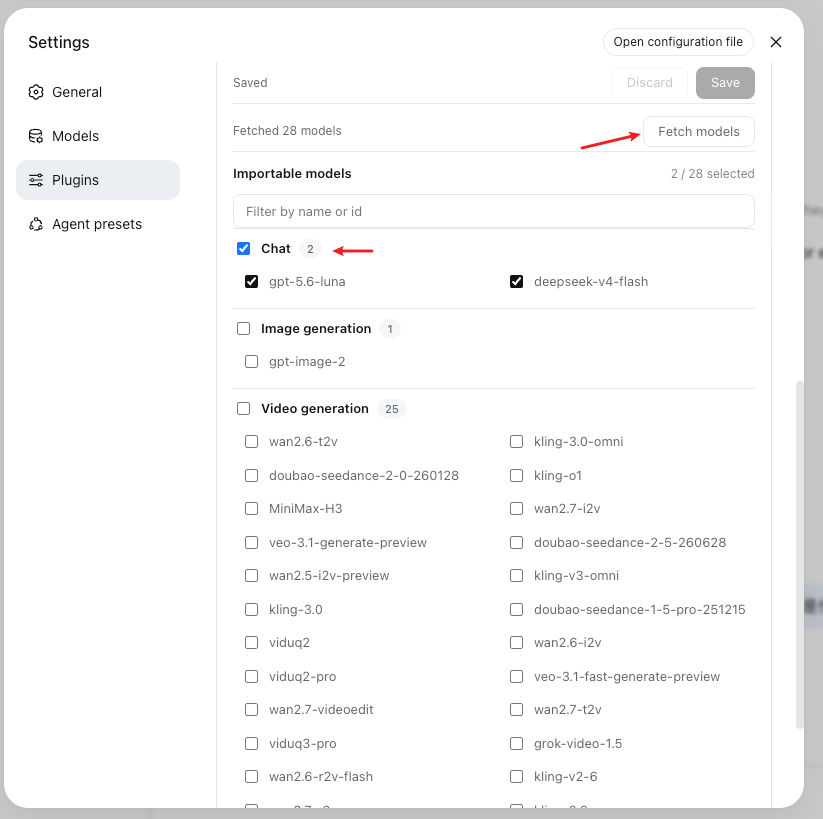
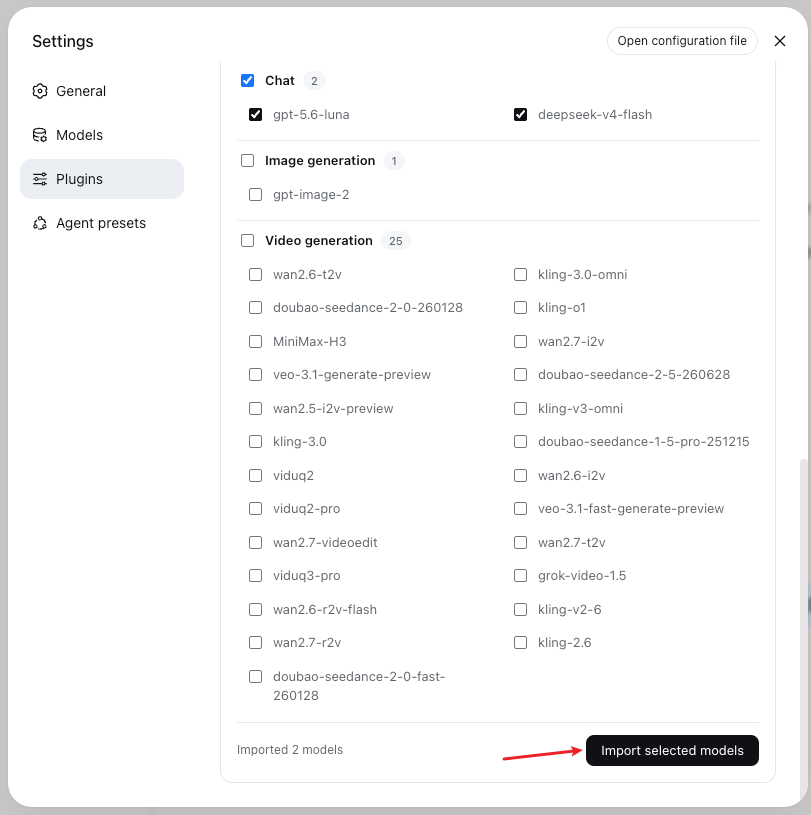
- Select the models you need (for example,
deepseek-v4-flash) and click Import selected models. Only imported models appear in the chat model selector.
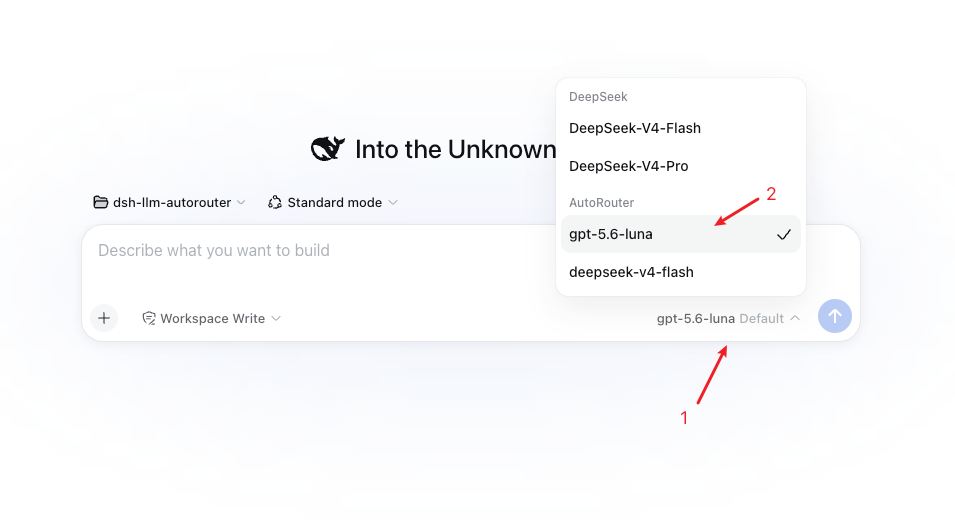
🧭 Step 4: Select an AutoRouter model in chat
In the Web chat model selector, choose an imported AutoRouter model to test it.
✅ Step 5: Verify the integration
- Start a conversation or Agent task in DeepSeek Harness.
- Confirm that content streams back normally.
- Optionally, review the request's usage and routing records in the AutoRouter console to confirm that traffic reached the gateway.
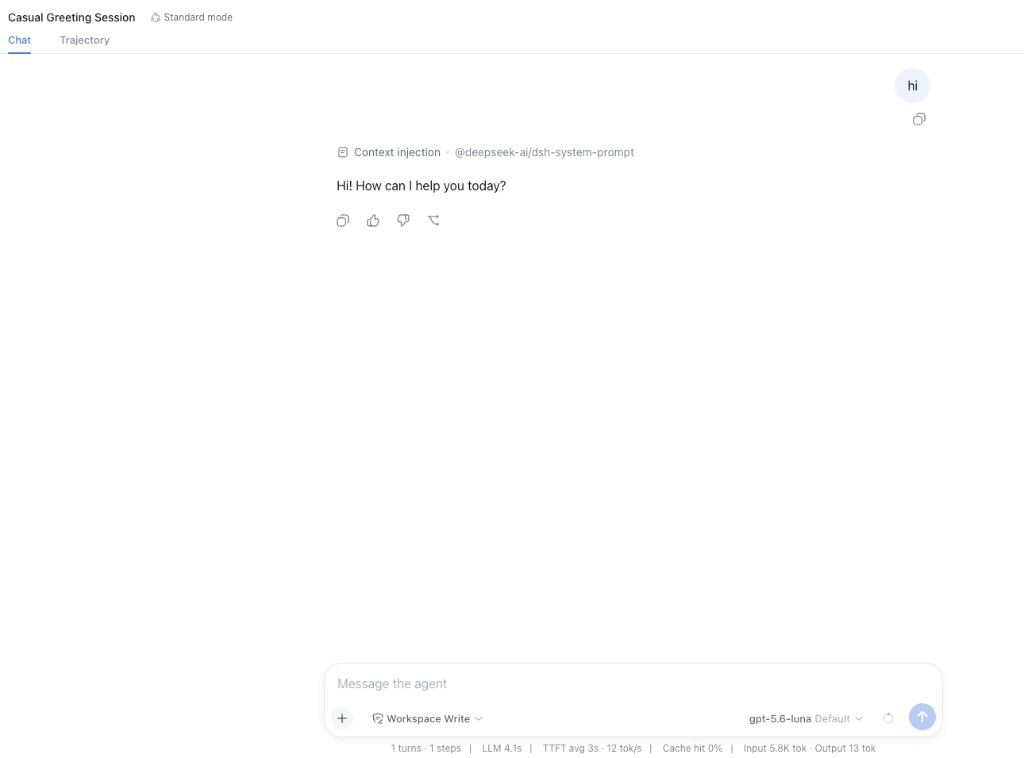
A normal response confirms that the setup is complete. Harness model calls will now pass through AutoRouter, where the gateway handles intelligent routing and channel management.
❓ FAQ
| Issue | Solution |
|---|---|
| Connection failed / invalid API Key | Check that the endpoint is https://api.autorouter.top (not a full path ending in /v1/chat/completions), verify the API Key, and make sure you clicked Save |
| Fetching models fails | Save the endpoint and API Key before clicking Fetch models, and confirm that your machine can reach the gateway |
| Models do not appear in chat | You must first Fetch models and Import selected models; the chat selector only reads the imported allowlist |
| Model not found | Confirm that the Agent's model, the imported model ID, and the model ID in the AutoRouter console match exactly |
| Incorrect endpoint | Enter the gateway origin in the Harness plugin (for example, https://api.autorouter.top), not the full Chat Completions URL |
| API Key locked by an environment variable | If AUTOROUTER_API_KEY is already set in the launch environment, the Plugins page may be unable to overwrite it. Remove the variable and restart dsh web, or use the page to store the key |
| No UI / CLI profile | Set the AUTOROUTER_API_KEY environment variable or store the key through the credentials service; prepare the model allowlist through the configuration/import workflow |
Crush
Crush is an open-source AI coding agent by Charm, running inside your terminal. It supports multi-model switching, LSP integration, MCP servers and agentic coding workflows — and ships with a polished, responsive TUI.
Oh My Pi
Oh My Pi is a terminal AI coding agent. Custom model providers are added through a models.yml config file, with full support for reasoning effort, tool calling, and context management.