TRAE
TRAE is an AI coding assistant with built-in models and custom model integration. It natively supports code generation, debugging, and full-stack development assistance. The official build, however, has limited model choices, queueing during peak hours, network restrictions, and higher costs — you cannot freely switch among Claude, GPT, Gemini, and other mainstream models. AutoRouter solves this by removing model lock-in, delivering near-instant responses without queues, supporting multiple models, local payment methods, and lower call costs, so TRAE can adapt to different models and development scenarios.
- Website: https://www.trae.cn
📦 Prerequisites
What you'll need
- TRAE installed (macOS / Windows / Linux)
- An AutoRouter API key (generated in the console)
- A model ID exactly matching one exposed by your AutoRouter console (e.g.
claude-fable-5)
🚀 Step 1: Download and install TRAE
- Visit the TRAE website: https://www.trae.cn
- Download the installer for your platform
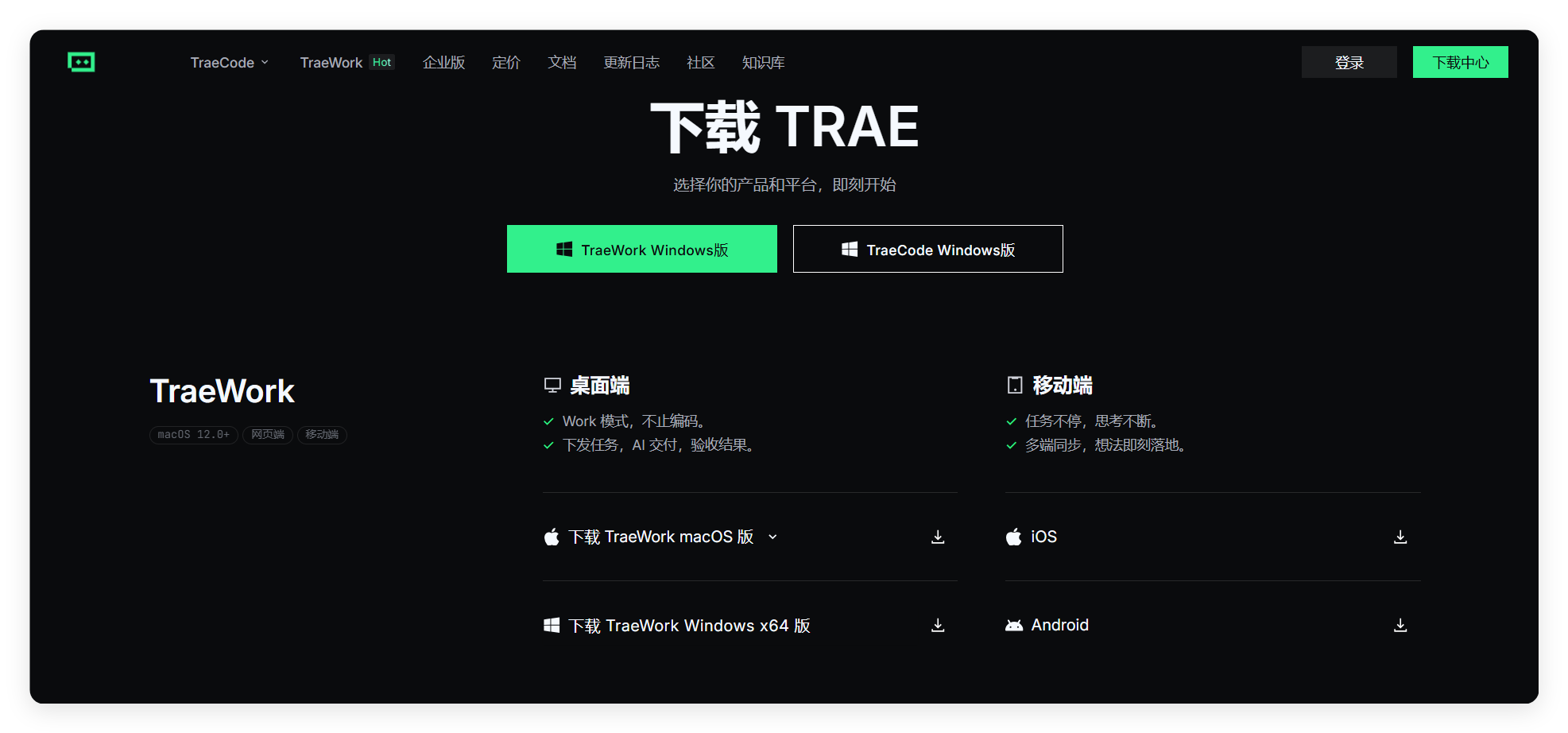
- Complete the installation
🔧 Step 2: Sign in
TRAE requires an account to unlock AI features (code generation, Q&A, etc.). Sign-in is free — no paid subscription required:
- Launch TRAE and open the login screen. You can sign in with a phone number or email (phone is recommended for users in mainland China)
- Enter your phone number or email, request a verification code, enter the code, then click Login
- First-time sign-in does not require a separate registration — after verification, an account is created automatically and you enter the main interface
🔑 Step 3: Get an API Key
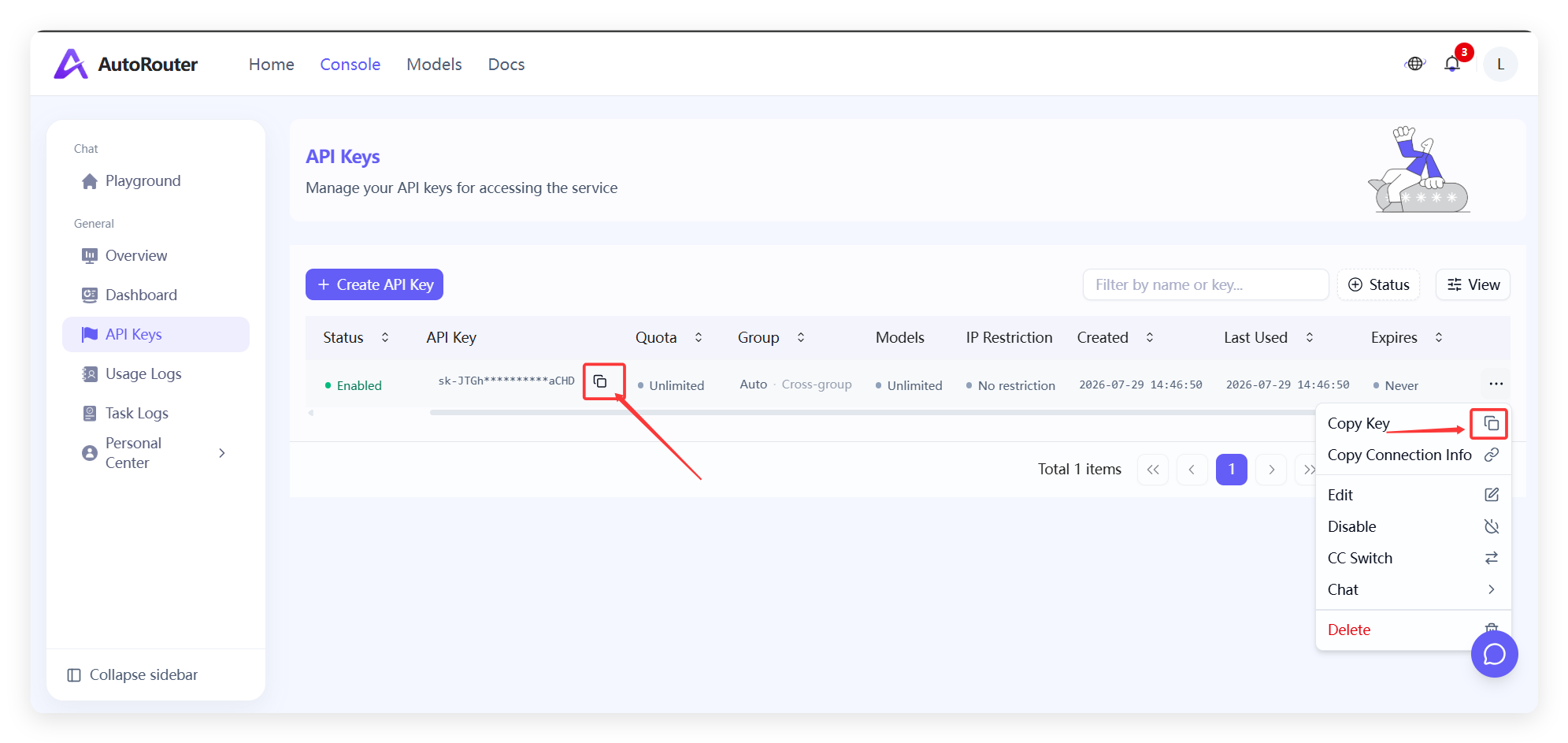
- Open the AutoRouter API Keys page and click Create API Key. See Quick Start for details.
- After creation, copy and store the API Key securely — you will need it in the next steps.
⚙️ Step 4: Configure a custom model in TRAE
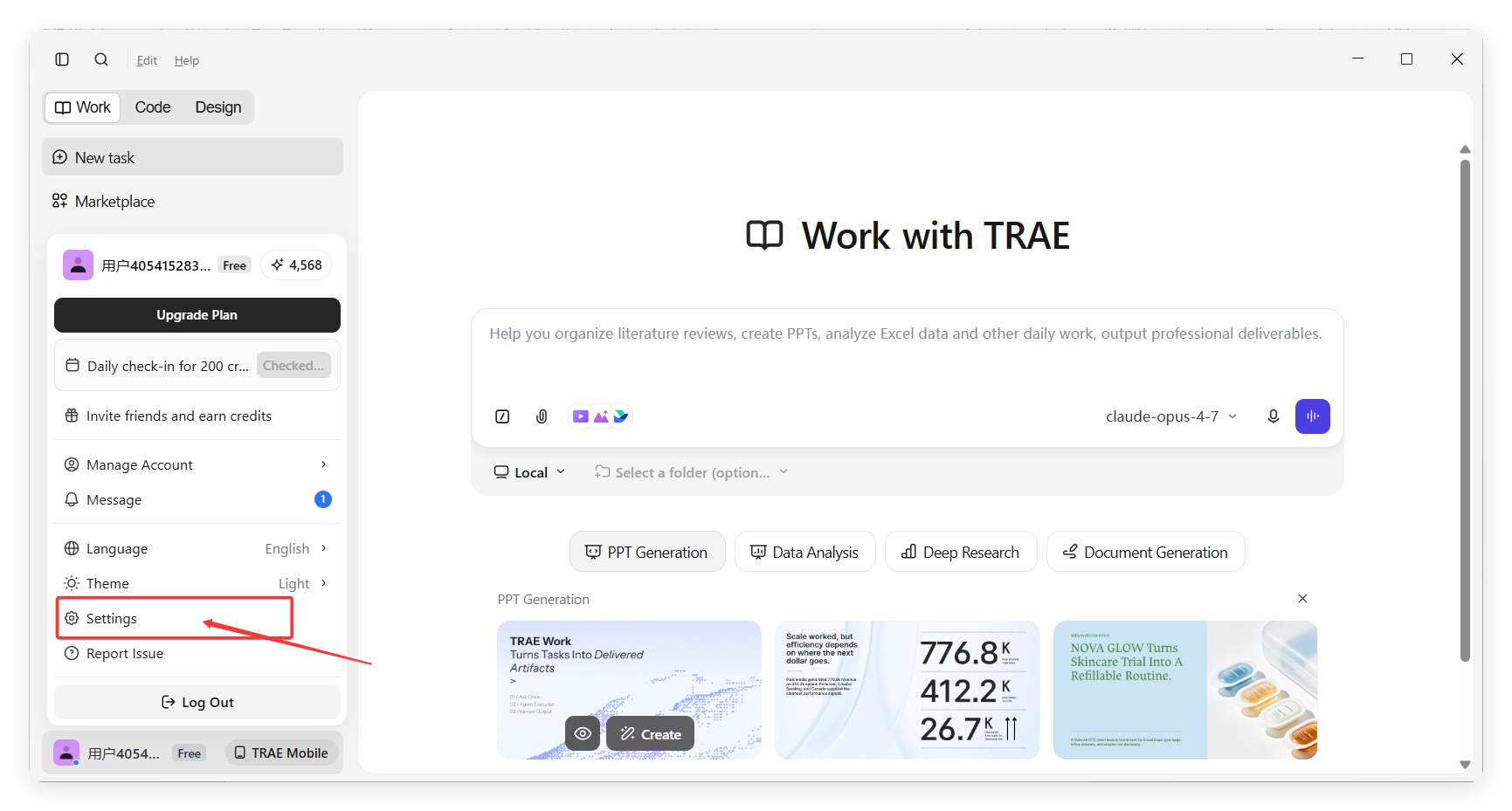
Click your username and open Settings:
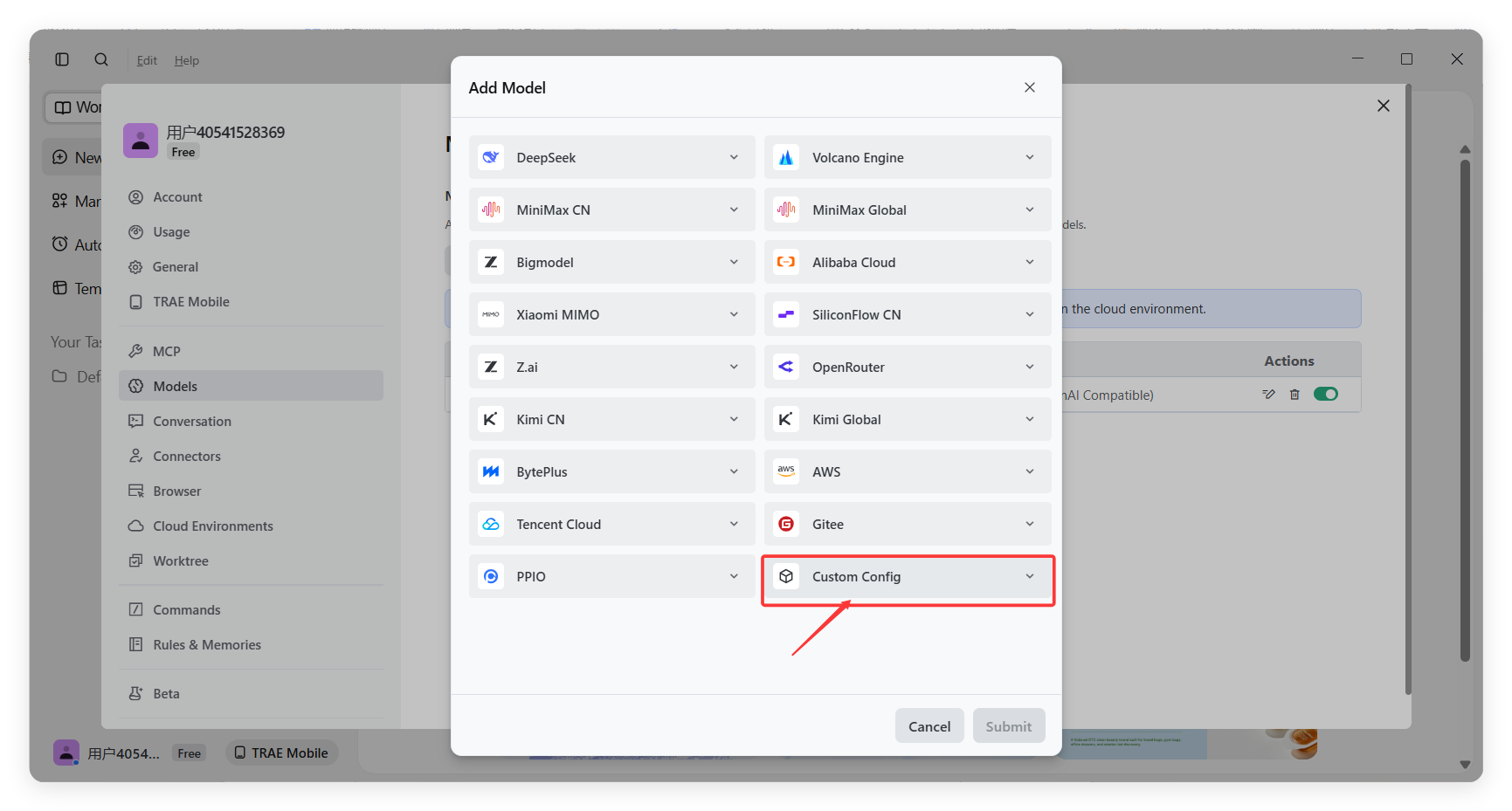
- Open the Models menu and add a model.
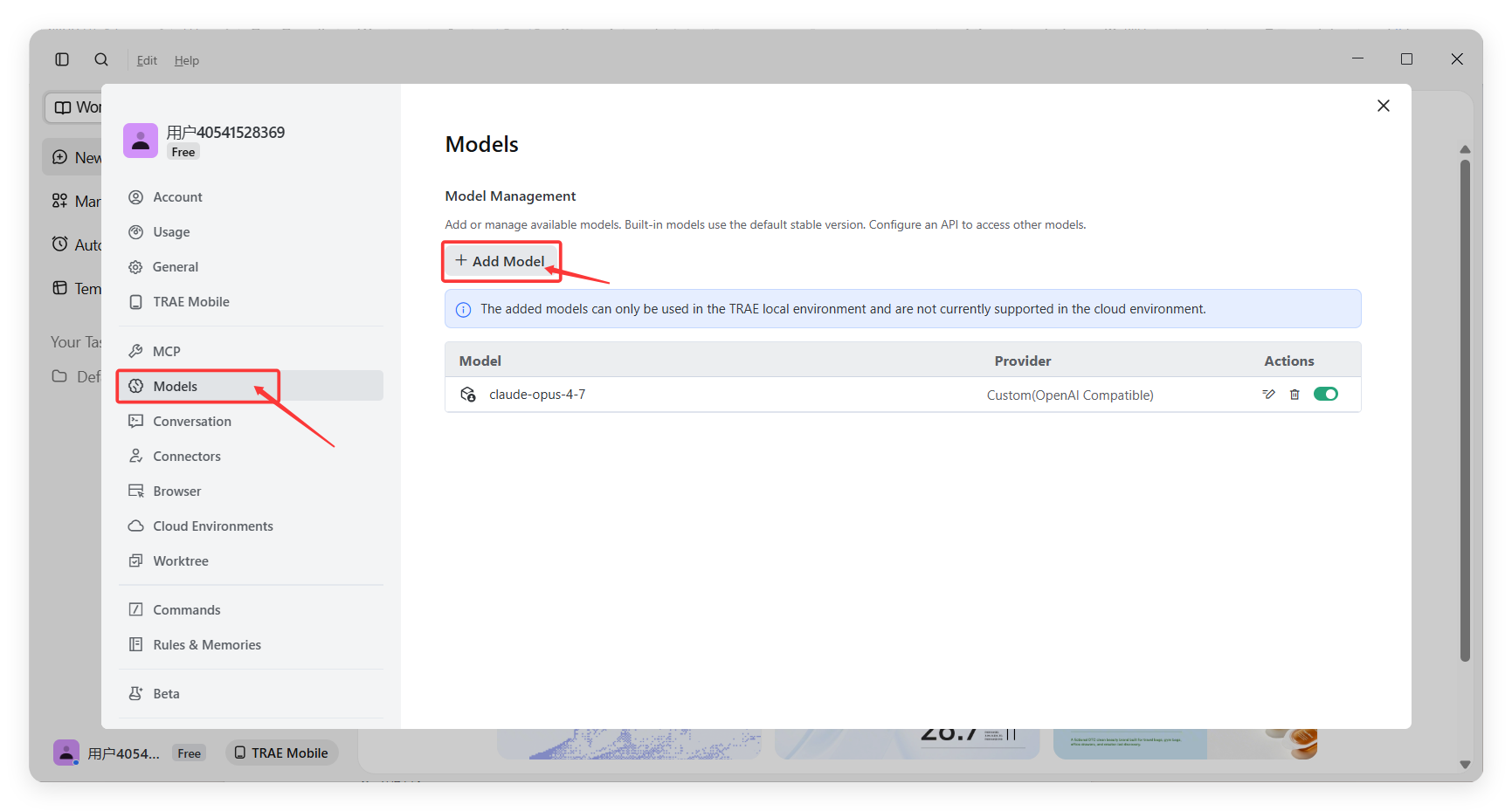
- Choose Custom Config.
-
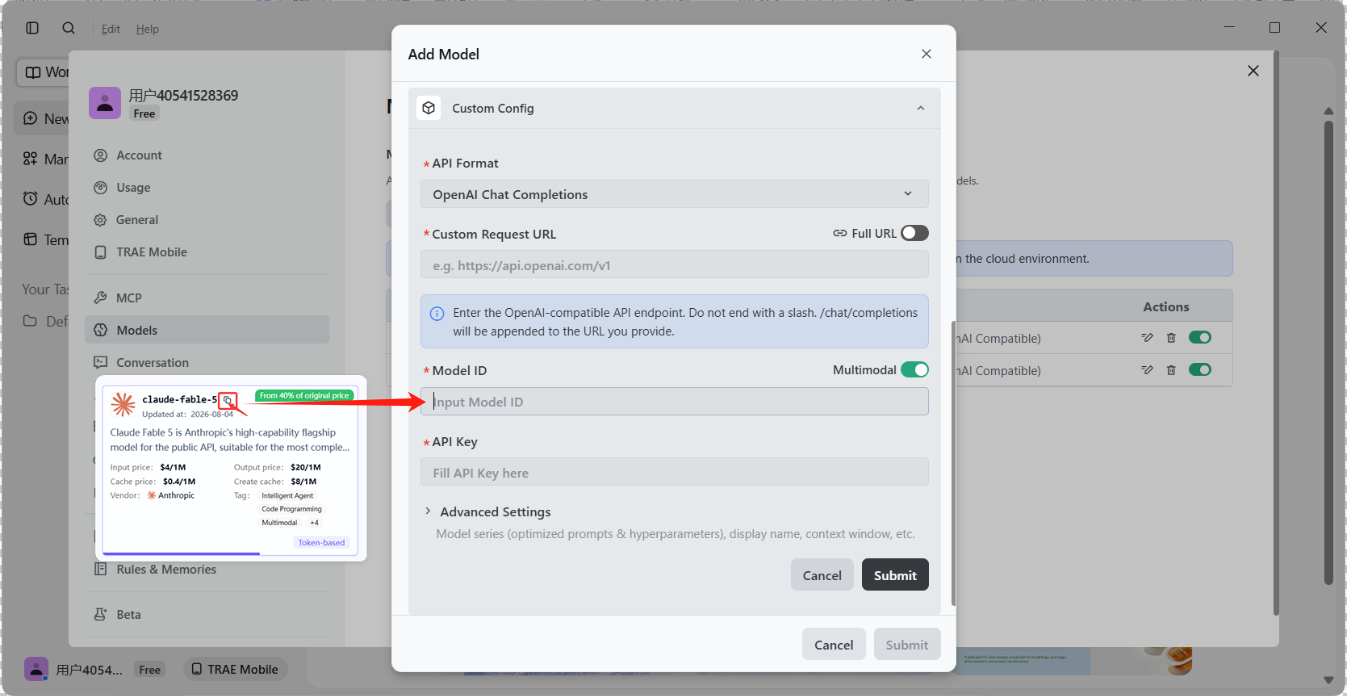
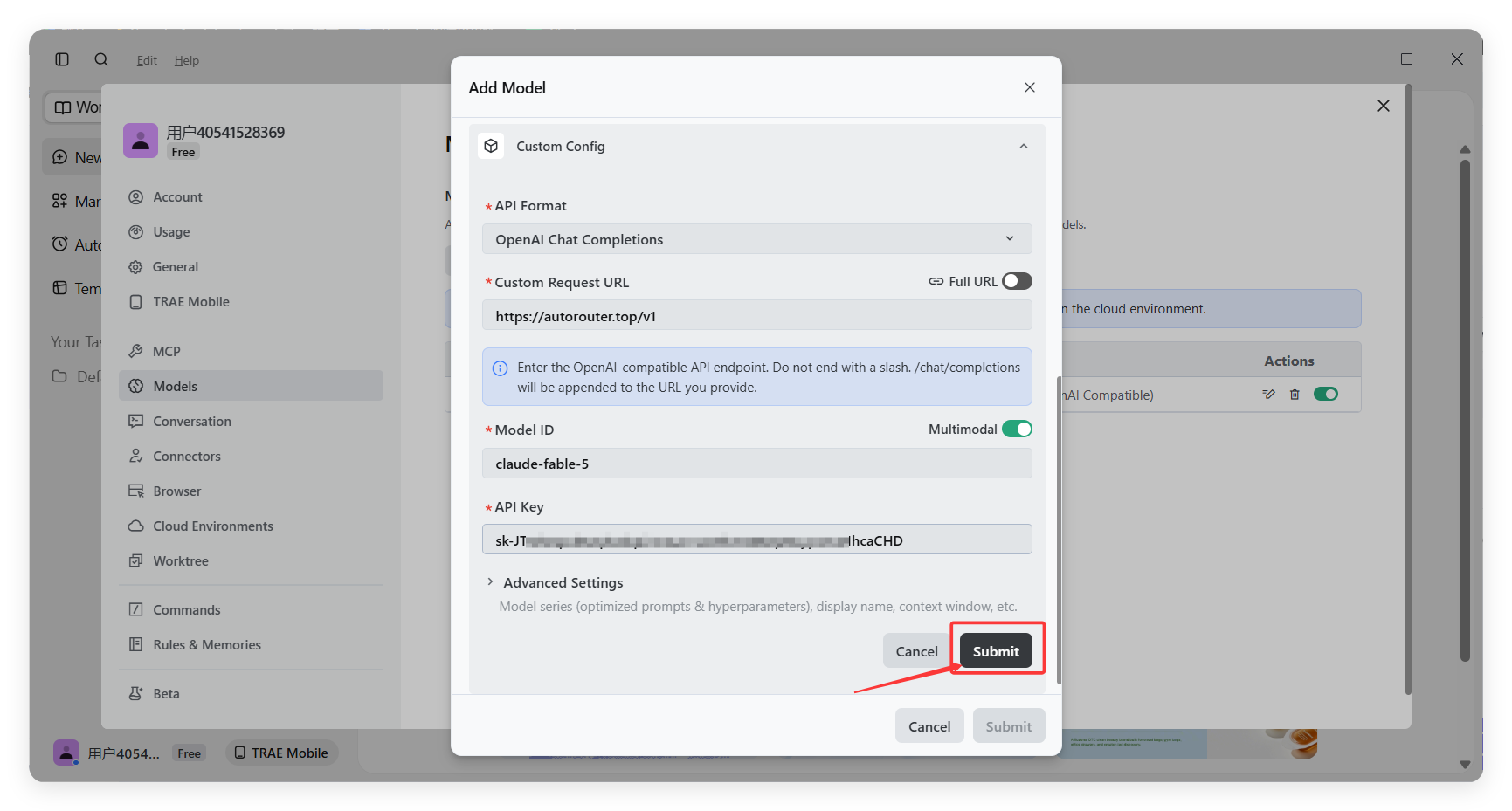
Fill in the following fields:
- API endpoint:
https://api.autorouter.top/v1/chat/completions - API Key: your AutoRouter API Key
- Model name:
claude-fable-5(or any other model ID available in your AutoRouter console)
- API endpoint:
- Submit the model.
✅ Step 5: Verify the connection
After you click Add Model, TRAE calls the provider endpoint to validate the API key.
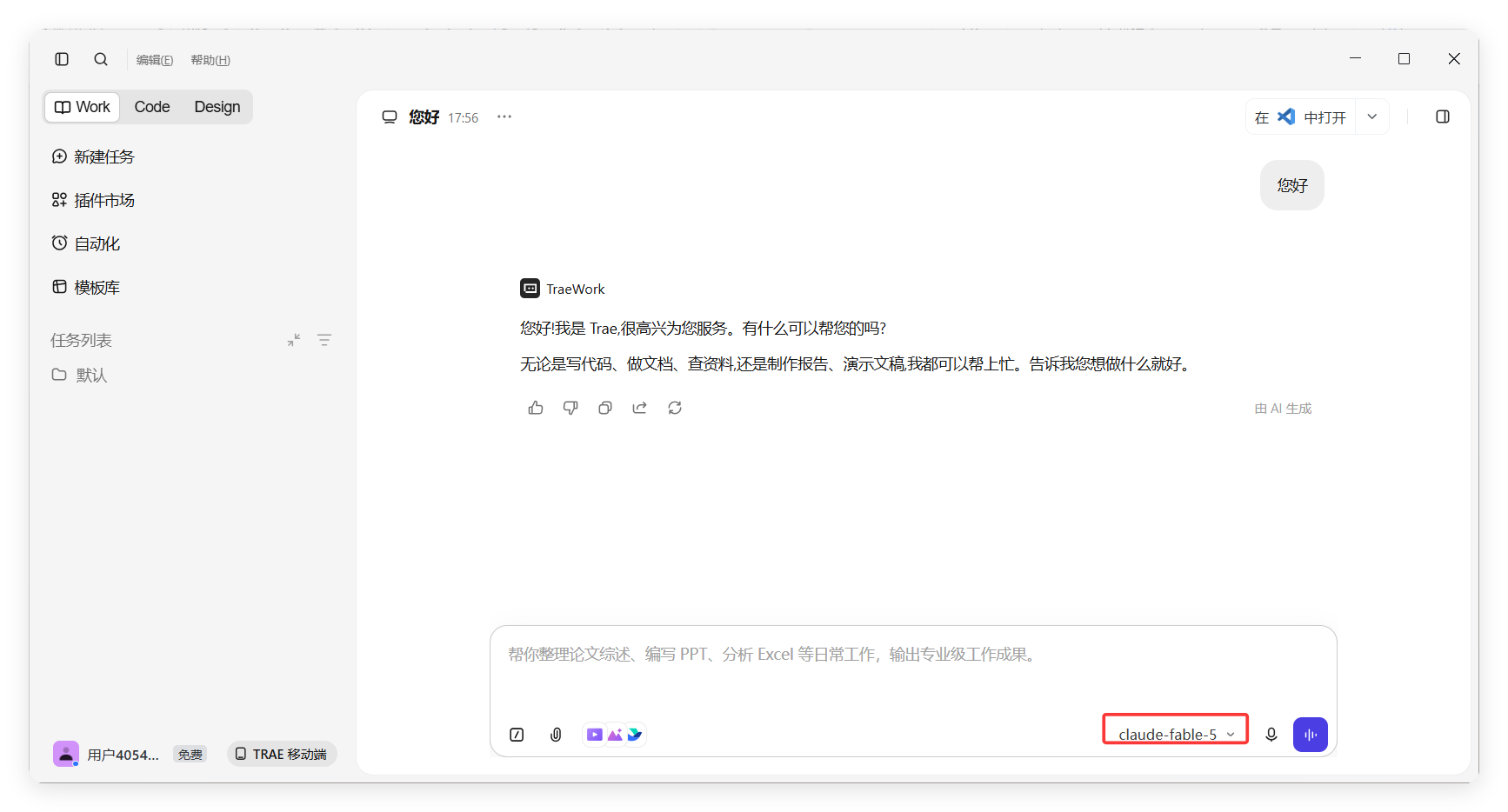
- If the connection succeeds, the custom model is added and available in chat.
- If it fails, an error message is shown — use it to troubleshoot.
❓ Troubleshooting
| Issue | Fix |
|---|---|
| Connection failed / invalid API key | Confirm the endpoint is https://api. and the API Key is correct |
| Model not found | Confirm the model name exactly matches an ID in your AutoRouter console |
| Cannot find Custom Config | In Settings → Models → Add Model, choose Custom Config |
| Model not available in chat | Ensure the model toggle is on, then switch to it in the chat model selector |
OpenCode
OpenCode is an open-source terminal AI coding agent with both TUI and CLI modes. It's compatible with 75+ AI service providers and, via its built-in @ai-sdk/anthropic and @ai-sdk/openai-compatible adapters, can seamlessly connect to both Anthropic-protocol models and OpenAI-compatible models served by AutoRouter.
WorkBuddy
WorkBuddy is a full-scene desktop AI agent from Tencent. It integrates with QQ / WeCom ecosystems, supports local computer control and multi-model switching, and offers commercial service via Token quota plans for both individuals and teams. Through custom models (OpenAI-compatible protocol), you can seamlessly connect models served by AutoRouter. This guide uses gpt-5-nano as an example.